Showing posts with label Hard Reset android. Show all posts

some useful and interesting smartphone codes

Some Useful and Interesting Codes for Smartphones

Some Useful and Interesting Codes for Smartphones

This page contains a list of codes that can be entered into most Smartphones to retrieve important information run diagnostics and test the functionality of the device.
The codes below are primarily for Smartphones running on the Android Operating System but some codes listed will also work on basic phones and Smartphones that might not be built on the Android OS such as iPhones (iOS), Windows Phones, Nokia Phones (Symbian), etc. Some codes only work for specific manufacturers, some for specific versions of the operating system, some makes and models of phones just don’t like to work at all.

Disclaimer: This page is for educational and informative purposes only, and a few of these codes I wouldn’t recommend a basic or novice phone user to perform. Some of these codes can clear important information from your device if not already saved properly. So all in all, read the description of what the code is intended to do and perform these codes at your own risk because I will not be held responsible or accountable. Otherwise enjoy the codes and enjoy the article.

To input these codes on your phone all you have to do is open up your dialer as though you’re dialing a telephone number and then enter the code. After typing in the code the phone should pull up whatever option you’re testing. Some of these codes you might need to enter the code and then call/dial it.

*#*#4636#*#* or *#*#INFO#*#* can be used to check a lot of things on most Android Smartphones. Including:

Phone information -allows you to run a ping test, and shows a ton of interesting information about the phone.

Battery Information – now you can remove that power app you installed on your phone, all the common information you need about your battery and charging is here.

  • Battery Status: Shows whether the device is charging or if the battery is full.
  • Power Plug: Shows how the device is charging, AC (wall charger), USB (computer) etc.
  • Battery level: at what Percent the battery is charged.
  • Battery scale: should read “100”.
  • Battery Health: should say “Good”. If it shows “unknown” or “unknown error” then you should power cycle (turn the phone off than on) and check again. If it still doesn’t say good. Then the battery itself is likely defective.
  • Battery Voltage: really isn’t something the average phone user is going to need to worry about.
  • Battery Temperature: if your phones getting HOT you can check and see if it’s your battery that’s heating up or the phone itself.
  • Battery technology: usually just shows Li ion (because of the common Lithium Ion batteries found in the majority of these devices).
  • Time since boot: shows the amount of time since you last booted up or turned on the phone.

Battery History

Usage Statistics – shows the apps and programs that have been running on the device and can show how often they’re being opened and used.

*#7353# will access the Device Diagnostic Tool on Samsung phones and some other Smartphones excluding the HTC.

*#*#3424#*#* is how to open the Device Diagnostic Tool on an HTC Android phone.

*#06# shows the IMEI number of your phone. The IMEI is a unique 15 digit number for your specific phone, basically the Social Security number of your phone. Sometimes when typing in *#06# it will add an additional 2 digits at the end. The first 15 digits shown before any space or dash is your IMEI.

*2767*3855# is a code to perform a VERY THOROUGH complete wipe on a Samsung phone. Never type in this code until you backup your entire phone, it will not erase your Operating System or preinstalled applications. It will erase all personal data and settings. If you have tried to perform a Factory Data Reset on your Smartphone and it didn’t solve your issue then this code might be exactly what you’re looking for. PS also remove your SD card or Memory card from the phone before using this code.

*983*57# can be used to Factory Data Reset some Android devices, ZTE phones especially.

*#0*# will pull up the Device Diagnostic Tool on a Motorola Atrix that’s still using the Android 2.1 OS (Operating System).

#3282 or #DATA should show the data usage for Verizon phones.

*4 then hit 4 again to get to the menu for Sprint Customers.

 *3282# or *DATA# to check data usage on AT&T phones.

*646# or *MIN# to check minutes on an AT&T cell phone.

#646 or #MIN Checks the current month's unbilled airtime usage on Verizon phones.

*225# Shows Bill Balance on AT&T mobile phones.

*729# accesses a Bill Pay option on AT&T Phones.

*639# can be used to check upgrade eligibility on an AT&T phone.

*#*#7780#*#* is an alternate code to perform a Factory Data reset on some Android Smartphones. Don’t do this unless you’ve backed up your phone so you don’t lose anything. Once you type in this code the phone will show the option to erase the memory on the device and provide the option to format the SD card as well. Note: In order to finish the reset you will have to tap the “Reset phone” button shown on the screen.

*#7380# is a soft reset code to restore the phones original factory default settings (just settings not a full clear) on Nokia mobile phones.

*#7370# is a hard reset on Nokia phones, this restores the whole phone, not just the settings, so make sure you do a backup first, if possible.

*#*#34971539#*#* this code can be used to get information about your phone’s camera. It shows following:

Update camera firmware in image (Don't try this option because it will most likely break your phone)

Get firmware update count

Get camera firmware version

Update camera firmware in SD card

*#1234# displays software/firmware information.

*#*#7594#*#* this code can be used to change the "End Call/Power" option on your phone. So instead of having to select the Silent mode, Air Plane mode or Power off, you can just use the power key to power the phone right off.

*#*#232339#*#* or *#*#526#*#* or *#*#528#*#* - Wireless LAN (WLAN) test. Just use the phones "Menu" button to start the various tests).

*#*#232338#*#* Shows the Wireless LAN (WLAN) MAC address WiFi and can show “power save mode Settings”.

*#*#273283*255*663282*#*#* will open a file manager of sorts where you can backup your media files such as Images, M3 (Sound), Video and Voice memos.

*#*#197328640#*#* opens a Service Mode where you can run various tests such as debugging the screen, gather version information etc.

*#*#1472365#*#* or *#*#1575#*#* will allow you to access a GPS test.

*#*#232331#*#* pulls up a Bluetooth test screen.

*#*#232337#*# Shows the Bluetooth Device Address.

*#*#7378423#*#* or *#*#SERVICE#*#* Sony Battery Health test

*#*#4986*2650468#*#* - PDA, Phone, H/W, RFCallDate.

*#*#1234#*#* - PDA and Phone.

*#*#44336#*#* - PDA, Phone, CSC, Build Time, Changelist number.

*#*#3264#*#* pulls up the RAM version.

*#*#2222#*#* shows the FTA HW Version.

*#*#1111#*#* shows the FTA SW Version.

##21# will cancel your phones registration from your service provider and should allow you to connect to the closest tower in your area. Once you type in the code you will have to actually call it, it will show a message and then go through… try and make a call or two and see if the service has improved. If yes enjoy, if not then power cycle your phone (turn it off and then back on). I don’t usually recommend this code be used unless you’re having pretty constant network related issues. If for some reason you have minimal service after entering this code and you have tried restarting your phone then you might have to contact your wireless provider to get them to reconnect you to the network (which power cycling should do for you), just call in and let them know that you suddenly had no service, should be one of the standard things they check for service related issues, just have them send an OTA (Over The Air Activation) to your phone (so far only confirmed on AT&T phones).

*#*#0283#*#* can check the Packet Loopback for networking.

*#*#0*#*#* - run a LCD test on your screen.

*#*#0673#*#* OR *#*#0289#*#* is how you run a Melody test for checking the sound. I believe this one is for the external speaker (the speaker that plays music on the phone).

*#*#0842#*#* Device test (vibration test and back light test).

*#*#2664#*#* Touch Screen test for if you think you might have dead spots or areas that don’t respond on the screen.

*#*#2663#*#* to show the Touch Screen version.

*#*#0588#*#* is a Proximity Sensor Test. The proximity sensor is a small little sensor, usually on the top of the phone next the logo or speaker you hold up to your ear, and its purpose is to know when you put your phone to your ear, so that the phone will lock, and you won’t accidently press keys when talking to other people. It then is supposed to realize when you’re removing your phone from your ear so that it can show the display again. If your phone is remaining on a black screen and you’re having issues ending calls then it could be your proximity sensor.

*3001#12345#* opens a Field Test on iPhones. You’ll have to press dial/call for this code to go through. This code opens a lot of different options to go through and see how well or efficiently your iPhone is working. One such future shown includes your phones signal. After typing this code into the phone the signal bars actually turn into a number. The lower the number the worse your signal strength is. Remember the number is a negative so -90 is a worse signal strength on your phone than a -80. Using this code can access a ton of technical information on an iphone, once done going through what you want then just press your home key to exit the Field Test.

*777# then call/dial, should open the account balance on a prepaid iPhone.

*#61# can be used to check the number for unanswered calls on iPhone. Use the code *#62# if you don’t have any service currently available. *#67# if the iPhone is busy.

*#21# provides information on call forwarding options.

*#119# or #*119# is supposed to help take a phone out of Emergency Mode. (submitted by a Sprint employee)

*#30# should show whether the phone has the setting to display its caller ID field enabled or disabled (I have yet to confirm this code. I think it is primarily for iPhones). *#76# is a similar code.

*#33# can be used to check for call control bars on an iPhone.

*#43# shows whether call waiting is enabled or disabled on iPhone.

I hope you enjoyed the article and saw some interesting codes that you can use on your phone. If you didn’t see any that you know of and have tried and confirmed yourself then let me know in the comments below. Don’t forget to include the Star Code and what the code actually does in the comment.

I look forword to hearing what you have to say. And don’t forget to check the site for other fun and interesting articles. Enjoy and I look forward to hearing from you.
Tags: Smartphone, Android, iPhone, Windows Mobile, Star Codes, Secret Codes, Phone Codes, Keypad Codes, Mobile Phone Codes, Phone Testing, Phone Information, Device Diagnostic Tool, IMEI, Checking Data, Checking Minutes, Factory Data Reset, Master Clear, Master Reset, Camera, Phone Settings, Device Test, Proximity Sensor, Tools, Battery Information, Battery Health, Samsung, HTC, LG, Nokia, Testing

How to Hard Reset an Android Phone

How to Hard Reset an Android Phone

how to hard reset

Is your Android Smartphone slow, freezing, not responsive, responding incorrectly, or you can’t remember the phones password? You’re in luck! There is still a pretty powerful option available, and that is to perform a hard reset, also known as an alternate reset, on the device.
Before we begin… If you are still able to access the setting on your device and navigate the phone then you might be more interested in reading How to backup and reset an Android phone, which goes through the process of doing a full backup and then performing a Factory Data Reset through the phones settings.

If you’re having problems accessing your factory data reset options through the settings then you can still perform a factory reset on your Android Smartphone and this article will show you how to do it. This is the perfect solution if you’re having problems with your touch screen, or you can’t navigate correctly on your phone. It’s also an option if you can’t get your device to power on all the way or when your phone won’t power on at all.

If you’re seeking to do a reset on your Android Smartphone then you most likely know how effective a reset can be at solving issues on phones. Through this article I am going to go over multiple ways to perform resets on your phone without actually having to navigate through the touch screen. Your phone doesn’t even need to be on in order to do it in most instances!

Make sure the device is powered off

Most of these hard resets require that your phone is completely powered off, so make sure that your phone is powered off all the way not just locked. If you’re phone isn’t responding and you can’t power off the phone with the power button, then you might need to pull the battery out, count to ten, and then put the battery back in. Just don’t power the phone back on if you have to reinsert the battery. Keep the device powered off.

Also make sure that your phone is not plugged into a charger. If the phone is plugged into a charger or if the device is not fully powered off, the reset is not going to work.

Hard reset methods and procedures may differ

Alternate resets also usually involve performing a series of key combinations which we’ll get to in a minute. The key combination you have to perform will highly depend on the specific make and model of the phone and what version of Android OS (Operating System) is currently running on the device. For example you might be able to perform a reset on a phone one way if it’s running the 2.2 (Froyo) OS, then you upgrade your phone to the 2.3 (Gingerbread) OS and the method no longer works, causing you to use a different method (I have an example of this in method 6 and 7 below). When you upgrade again to the 4.0 (Ice Cream Sandwich) OS you might have to use a different method and different key combination to perform the same alternate reset. So just beware of this.

You might also need to attempt the reset a couple times for it to go through correctly.

Disclaimer: Remember that a reset is permanent and cannot be undone. It will erase all personal data and downloaded content on the phone, don’t worry it will not affect or erase your memory card or anything saved on your SIM card. This includes content such as pictures, ringtones, texts, apps, etc. and will usually fix software glitches, bugs, viruses, etc as well. Try if at all possible, to perform a backup first. Usually when you need to perform an alternate reset on your mobile phone you might not be able to do a backup.

Preparation for a hard reset on an Android phone

Just a minor side note, on a typical alternate reset so that you know what to expect. You’re going to power the phone off, hold a specific set of key combinations (shown below), access a fastboot/testing/recovery/etc screen, select reset, and then the phone is going to power itself off, all by itself, then it’s going to power itself back on, all by itself. This can take a few minutes, some phones can take up to 15 min to reboot (pretty uncommon though, the average phone probably takes 3-5 min). Once it reboots the phone is going to think its brand new right off the shelf. So go ahead and set it up again like you did when you first got it.

If you own an Android Smartphone manufactured by Pantech then unfortunately you cannot perform an alternative reset on your device. Pantech Smartphones currently do not have a hard reset feature; the only reset available on Pantech phones is through the settings.

Let’s start with the most common Hard Reset methods and go from there:

Note: the different types of methods are numbered, method 1, method 2, method 3, etc.

1. When the phone is powered off, press and hold the Volume Up and the Volume Down keys both at the same time, then press and hold the Power key until a test screen that shows some available options appears, usually takes about 15-20 seconds. When that screen pops up you can let go of the keys.

Press the Volume Down key to navigate down through the options until it highlights FACTORY RESET then press the Power key to select it.

2. Power the phone off all the way, press and hold the Volume Down key and press than release the Power key, still holding the volume down key for about 10-15 seconds. When you see some additional options pop up on the screen you can let go of the keys.

Press the Volume Down key to navigate down through the options until it highlights the reset option; it usually says FACTORY RESET, then press the Power key to make the selection.

3. While powered off, press and hold the Home key, while continuing to hold the home key power the device on by pressing the Power key.

Once the Android Recovery screen appears release the Home key, then while on the Android Recovery screen, press the Volume Up and Volume Down keys both at the same time.

If/when you’re on the Android System Recovery screen release all the keys, and then use the Volume down key to navigate down to the “wipe date/factory reset” option. Once it’s highlighted press the Power key to select it.

Once you see the “Confirm wipe of all user data?” Press the Volume down key to highlight “Yes—delete all user data”, then press the Power key to select it.

4. Power the device off, then press and hold the Home key and press and release the Power key (while still holding the Home key).

From the Android Recovery screen, press the Search key.

Tap to select wipe data/factory reset then select Ok (located in the lower left of the screen). Note: if screen is not responsive use the Volume keys to scroll and the Camera key to select.

Select Yes – delete all user data, and then select OK (again lower left).

Select “reboot system now” and press OK.

5. This is becoming a common hard reset method and can be used to factory reset Samsung’s more recent Galaxy smartphones such as the Samsung Galaxy S III, the Samsung Galaxy S4, the S5, the Samsung Galaxy Note the Note II and Note 3, etc.

With the device powered off press and hold the Volume Up key the Home key and the Power key all at the same time.

When the phone vibrates (or you see the GALAXY Logo) release the Power key but continue to hold the Volume Up and Home key.

Continue holding the Volume up and Home key until the “Android system recovery” screen appears.

Use the Volume buttons to scroll to and highlight the “wipe data/factory reset” option, and then use the Power key to make the selection.

Once the factory reset is finished you may use the Volume and Power keys to highlight and select the “Reboot system now” option and the hard reset will be complete and your cell phone will be nice and squeaky clean.

6. Here is an alternate reset for a Motorola Atrix still running on the 2.2 Android OS…

While the phones power is off, press and hold the Volume down button and press and release the power button (note: if it doesn’t work after all the steps listed try holding down the power button along with the volume down button in this first step).

A "Fastboot" screen should pop up, press the Volume down key to cycle through the choices until you get to "Android Recovery", then press the Volume up key.

Wait for the "triangle!/Android". Once it pops up you’ll need to tap on the bottom right corner of the screen (note: it may take a few attempts). A menu should pop up.

Tap on "wipe data/factory reset", and then tap OK. Another confirmation screen will appear. Tap Yes and then OK.

After the data is cleared the "reboot system now" option should appear and is highlighted by Default. Tap OK.

Note: this type of reset is common on the 2.2 (Froyo) before the tech geeks wised up and removed the need to use the touch screen.

7. This reset is for the same phone, the Motorola Atrix, but one that’s running on the 2.3 OS.

Power off the phone, press and hold the Volume down button and Power button simultaneously while powering on the unit.

The "Fastboot" screen should pop up. When it does press the Volume down key to cycle through the choices until you get to "Android Recovery", and then press the Volume up key to boot in this mode.

Wait for the "triangle!/Android" screen to pop up. Once it does press both the Volume up and Volume down keys simultaneously. A Recovery Menu should pop up.

Tap on the Volume down key until "wipe data/factory reset" is highlighted, and then tap the Power button. Another Confirmation screen will come up. Tap on the Volume down key until it highlights “Yes” and then tap the Power button to make the selection.

After it’s done make sure "reboot system now" is highlighted and then tap the Power button.

In this method you don’t have to use the touch screen any more. So let’s say your touch screen isn’t responding therefore you can’t navigate the phone or go into your settings and do a regular factory data reset. Well now on the 2.3 there is hope. Just power off the phone and perform these steps and the reset should go through.

8. Here is a hard reset for a Sharp Android Smartphone.

While the device is off, hold the Sym button (it’s located on the keyboard) and the Power button simultaneously.

Once the Android boot screen appears highlight the Wipe data/factory reset option by using the volume buttons. Then use the Return key (on the keyboard) to actually make the selection.

Scroll down to Yes - delete all user data and then press the Power key to confirm.

Once it is done select reboot system now and press the Power key to confirm and reboot your handset.

Important Note: On some Sharp models (such as the Sharp FX Plus ADS1) if holding the Sym button and Power key simultaneously doesn’t take you directly to the Android system recovery screen you might have to do one additional step. If using this hard reset key combination takes you to a screen which shows an exclamation mark within a triangle, then press the Home key (while on that exclamation mark screen) and this should take you to your Sharps Android system recovery options.

9. Here is a common method used to hard reset an LG Android smartphone. So if you need to hard reset an LG Optimus this is the hard reset key combination to try first.

After the LG phone has been powered off, press and hold the Volume Down button. While holding the Volume Down button, press and hold the Home button. While holding both the Volume Down button and Home button, press and hold the Power button.

Continue holding these three keys down simultaneously until the LG logo appears.

Once the LG Logo appears release all of the keys. This will complete the reset on many LG phones; you will be given the option to “Select your language” and can proceed with setting up your device as if you were setting up the phone for the first time.

If however, you are taken to a fastboot screen or a screen with additional options then use the Volume Down key to scroll to and highlight the wipe data/factory reset option and then press the Menu key to make the selection.

The phone might give you a confirmation screen in which you can use the Volume Down key to scroll to and highlight Yes -- delete all user data and then press the Menu key to make the selection.

If you get an option to reboot system now then select that option with the Menu key. The phone will reboot, which can take a couple of minutes, and the hard reset will be complete.

10. A less common method to hard reset an Android smartphone, but the following key combination can be used to reset some cell phones including the Samsung Gio (GT-S5660).

Power the phone off, by using the power button or by removing and then reinserting the battery (when possible).

While the phone is off press and hold the Home button and the Power key at the same time (the Home key is typically the big button on the bottom center of the phone under the display/touch screen).

When the phone starts to power on and you see the phones logo you can release the power button but keep pressing the Home button until the Android system recover screen appears. Once it pops up you can release the Key(s).

Use the Volume keys to highlight the “wipe data/factory reset” option, and then use the Home key to make the selection. Scroll down using the Volume keys again until the “Yes—delete all user data” option is highlighted and then press the Home key to select that as well.

The system recover screen should pop back up and when it does make sure that “reboot system now” is highlighted and press the Home key to make the selection. The phone will restart and the hard reset will be done.

11. Another uncommon hard reset technique but similar to the one used in method #2. This process can be used to hard reset T-mobiles Prism and Prism II as well as AT&Ts Huawei Fusion (U8652).

Turn off the phone and then press and hold the Volume Up key and Power key simultaneously until the Android system recover screen appears.

Use the Volume Down key to highlight the “wipe data/factory reset” option and then use the Power button to make the selection.

Use the Volume Down key to highlight “Yes -- delete all user data” and use the power key to proceed with the reset.

Once the reset is complete the phone may return to the Android system recover screen. If it does then use the Volume Down button to highlight “reboot system now” and press the Power key to confirm the action.

The phone will restart and the hard reset will be complete.

Now you know how to hard reset an Android Smartphone and the next time your touch screen stops responding, your phone freezes, your phones power cycling, you forget your password, or pretty much any reason you wouldn’t be able to perform a reset through the settings, you’ll be set.

If I have forgotten any key combos that you know of, leave the method in the comments below so that I can add it to the list. Don’t forget to check out some of our many other popular posts and don’t forget to power your phone off every couple of days and watch what applications you choose to download onto your device that way you can keep your phone healthy and efficient. Hope you enjoyed the article, have a fantastic day, and enjoy your phone.

Tags: Hard Reset, Alternate Reset, Master Clear, Master Reset, Fix, Instructions, Navigation Issues, Factory Data Reset, Wipe Data, Fastboot, Android Recovery, Buttons, Android, Smartphone, Phone, Mobile Phone, Pantech, Samsung, LG, HTC

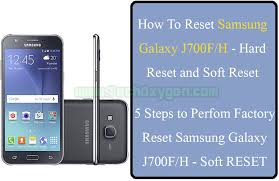
Samsung Galaxy J7 hard reset

Samsung Galaxy J7 hard reset

using the hardware keys to remove password the gesture lock remove password on J7 SM-J700F


  1. Turn off the phone completely.
  2. Press and hold both Volume UP and Home + power on the phone.
  3. When Android Recovery menu screen appears release all keys.
  4. Navigate and highlight "Wipe data / factory reset" using the Volume down key and press power.
  5. Navigate and highlight again to Yes --delete all data and power and press power.
  6. All data will be lost! before doing a hard reset backup all important data.
 After hard reset is done select Reboot System Now. Press power to reboot the phone.
Another way to reset your Galaxy J7 is to enter the reset code on dial screen
on dial screen enter this Samsung Galaxy J7 reset code: *2767*3855#

All data will be lost!

or
Use Samsung Galaxy J7 Backup and Reset
Go to -> Backup and reset> factory data reset: Reset settings to the factory default values and delete all data.
Your Device freezes or hangs, you may need to close applications or reinsert the battery and turn on the device to regain fuctionality. if your device is forzen and unresponsive, press and
hold the power button for more than 8-10 seconds to reboot.
if this does not solve the problem, perform a factory data reset. On the Application 
screen,tap Settings->backup and reset -> factory data reset -> Reset device Erase Everything. Before performing factory data reset, remember to make back-up copies of all important  data stored on the device.

Samsung Galaxy J7 soft reset / restart

press and hold for 8-10 seconds to reset the device if it has fatal errors on hang-ups, or freezes. this will restart your Samsung Galaxy J7 Android Phone.


Tag:- unlock, password reset, factory reset, hard reset, remove unlock pattern, remove password, pin code removal, samsung , factory mode, reset,